|
|
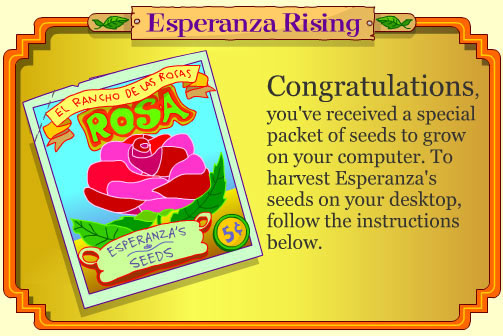
|
Download
for PC |
Download
for MAC The seed packet will work on MAC OS X. (This download requires the latest version of Stuffit Expander, available for free download here.) 1. Click the link above to download the Macintosh version of Esperanza's Seeds to your desired directory. 2. After downloading, go to the directory where you downloaded your Esperanza's Seeds file. Double-click on the downloaded file ("esperanza_seeds.sit"). This will create a new file called "esperanza_seeds_setup". On some systems this step will happen automatically, in which case you can skip to step 3. 3. Open "esperanza_seeds_setup" and Esperanza's Seeds will install. 4. In order to interact with Esperanza's Seeds, click the Screentime icon on the upper right hand corner of your desktop. Select "Make wallpaper interactive". When you have finished click on the Screentime icon again and select "Show Desktop Icons". To Un-Install the desktop countdown on a Mac 1.Click the Screentime icon on the upper right hand corner of the desktop and select Preferences. 2. Select "Delete selected desktop". 3. Deselect "Start SWF Desktop at Login" and close pop-up window. |
Close
this Window  |